

When a website doesn't load, do you blame yourself, your ISP, or the website? Do one of these tests to find out.
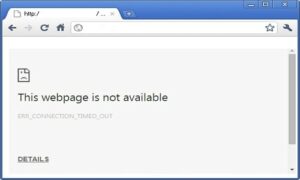
We've all had the experience of a particular website not loading, while the rest of it worked fine. So when something doesn't make sense in this mess we call the Internet, it's not always easy to figure out who's to blame. But we need to know. Because if the problem is ours, it's not going to go away until we fix it.
Try, then, the following to see if they solve the problem.
- Check if the problem does not apply to you
The website you want to access may simply be online right now. To find out, visit Everyone Or Just Me and type in the URL of the website you're having trouble with.
If your website tells you that "It's not just you," you can relax. There's nothing you can do except wait for someone else to fix technical problem .
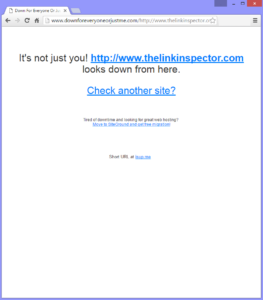
But if it tells you: «It’s just you (Είστε μόνο εσείς)», just keep reading.
- Try another browser
Whatever browser you are using, try another one. There could be a conflict between browser and the website in question.
In the long term, this is not a very satisfactory solution, especially if you are using a specific browser. But it works for one time and you can start doing some research about why the particular website has problems with that specific browser.
- Try the IP address
Remember that a domain name is just a friendly label. The real location is the IP address. Try entering that into browser .
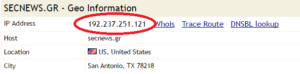
But first, you need to find the IP address. Go to Whois Domain Name Lookup, make sure the Who Is tab is selected, and type in the domain name.

After you have proven that you are human with the simplest CAPTCHA test in the world, you will get a screen with a lot of data. Scroll down and look for the Geo Information and the IP Address.
- Change your hosts file
This file contains special exceptions for domain names and IP addresses. Possibly, there is something wrong here – a possible scenario, if the domain name fails and the IP address works.
Use the Windows Search Tool to find the notepad %windir%\System32\drivers\etc\hosts.
This will bring the hosts file into Notepad. Search for the website’s name. If you find it, put a hash tag (#) at the beginning of the line. Save and close the file.
- Make sure you have not blocked the website
Search the Internet Options (Internet options) and open the Control Panel tool (Control Panel). Select the Security tab, the Restricted sites icon and then the Sites button.
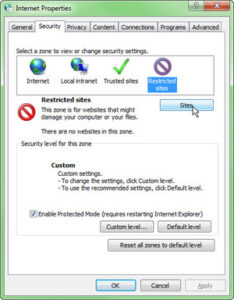
If the website is in the list, remove it.
