

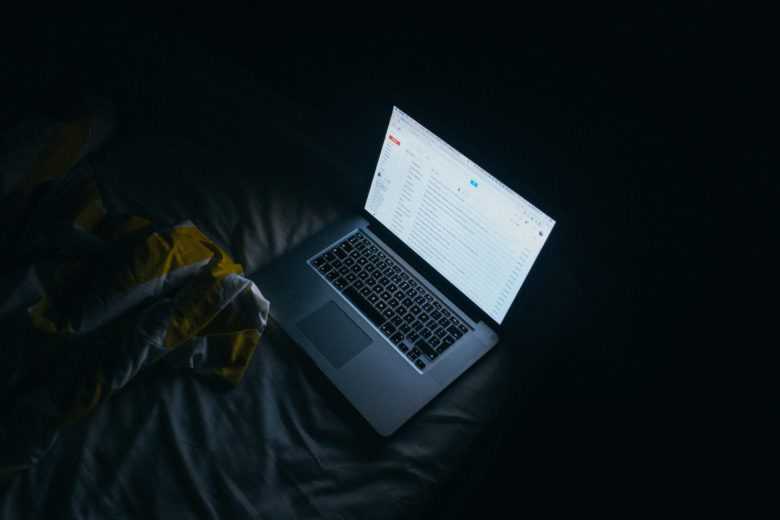
Spending long hours staring at a computer has its negative consequences, one of which is that the blue light from the screen can disrupt our body's natural rhythms. This in turn makes it harder to fall asleep at night, once the laptop is finally closed. In other words, your beloved MacBook may be ruining your sleep!
The macOS Sierra 10.12.4 update addresses this shortcoming by making a feature that previously required the f.lux app standard. Night Shift, as it's called, works by reducing the amount of blue light your screen emits at night — shifting to warmer colors. This can help you sleep better and easier.
How to activate this feature and claim the sleep that is rightfully yours? It's quite easy.
- First, make sure you have updated your MacOS.
- Then, go to “System Preferences” and select “Displays.” You should see a “Night Shift” option on the right side of your screen.
There are several different ways you can set the feature. Do you want it to turn on automatically at sunrise and sunset? There is an option for that.
Maybe you don't want the blue light as much, but you still want to get the benefits of that sweet warm color spectrum. In that case, just adjust the "Color Temperature" to find a setting that works for you.
If you want Night Shift to happen ASAP, you can skip all of the above and use Siri to do it for you. Pretty easy, right? You can even enable the feature on your iPad and iPhone.
Now you can control your sleep again.
